Remote kernel
A remote kernel executes your code on a server rather than in your browser. You keep working in the browser as usual; only the code execution moves to a remote Linux environment.
This environment lets you use packages available for linux-64 on conda-forge, including packages that are incompatible with WebAssembly.
Enable the remote kernel
The remote kernel must be enabled for your account before you can use it. Then:
-
Create an environment and set its Platform to
linux-64in the Metadata card.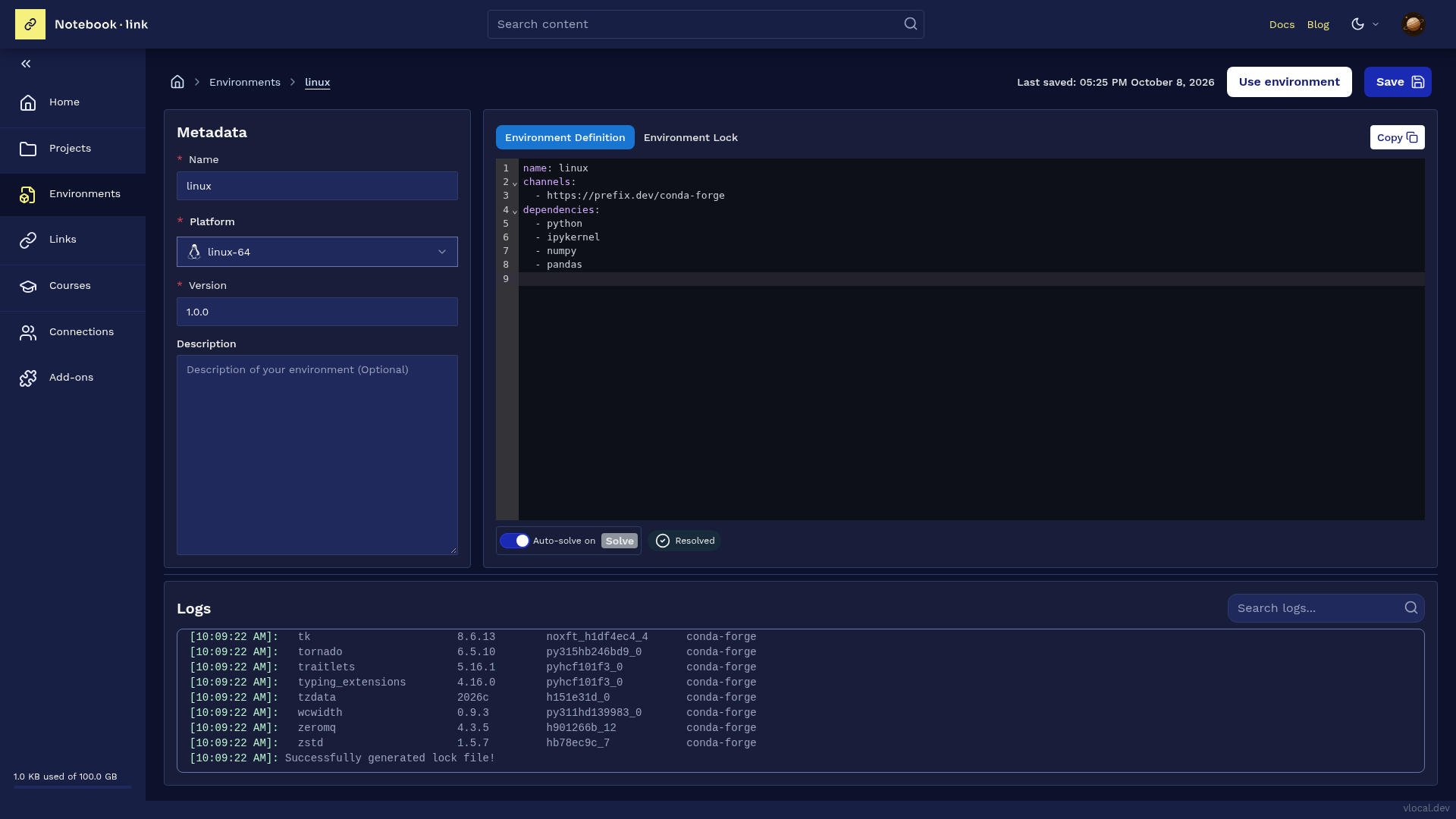
-
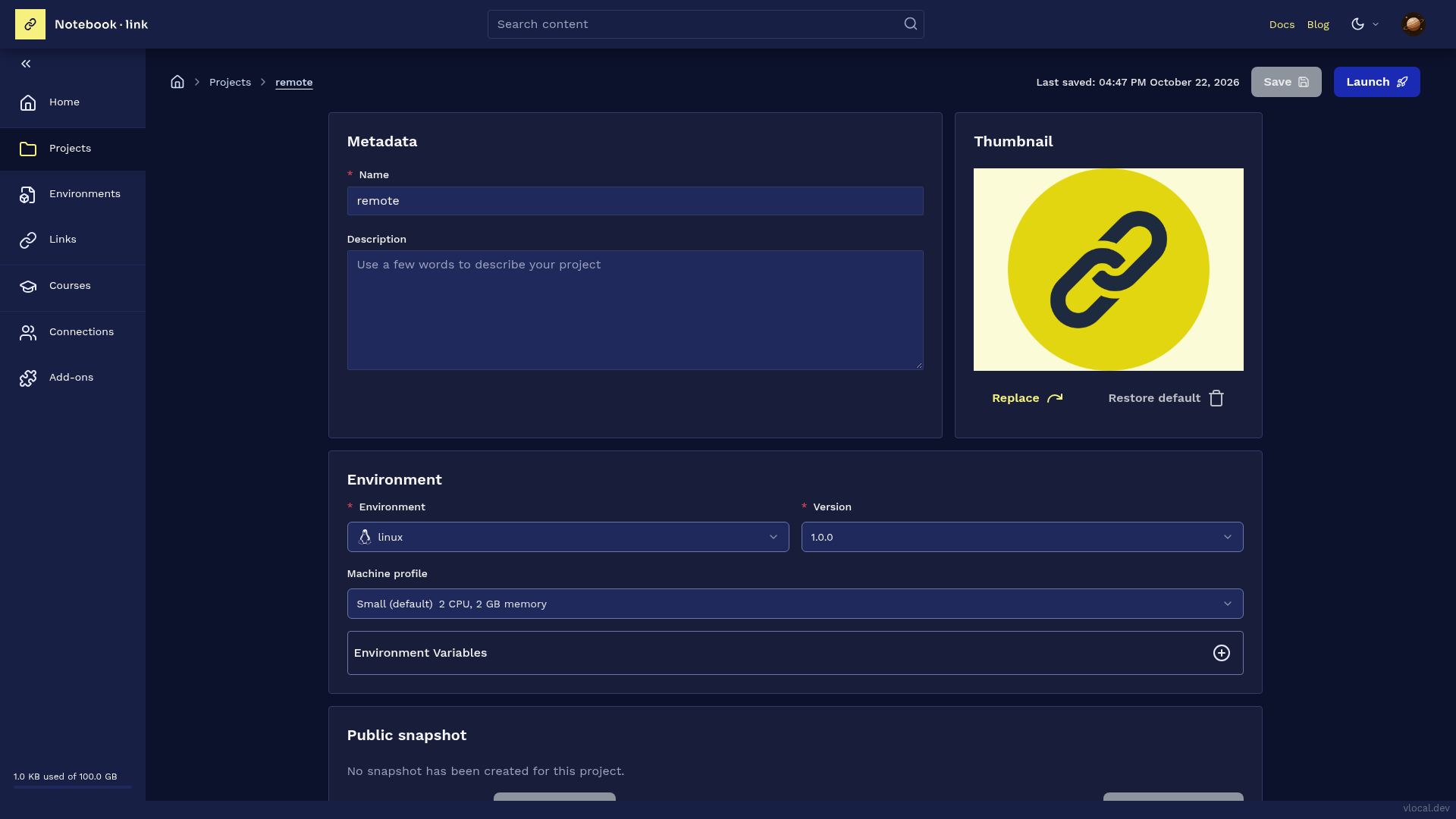
Select this environment in your project.
-
Choose a Machine profile to select the CPU, memory and, when available, GPU resources allocated to the kernel. If you do not choose one, the default profile is used.
Start and stop
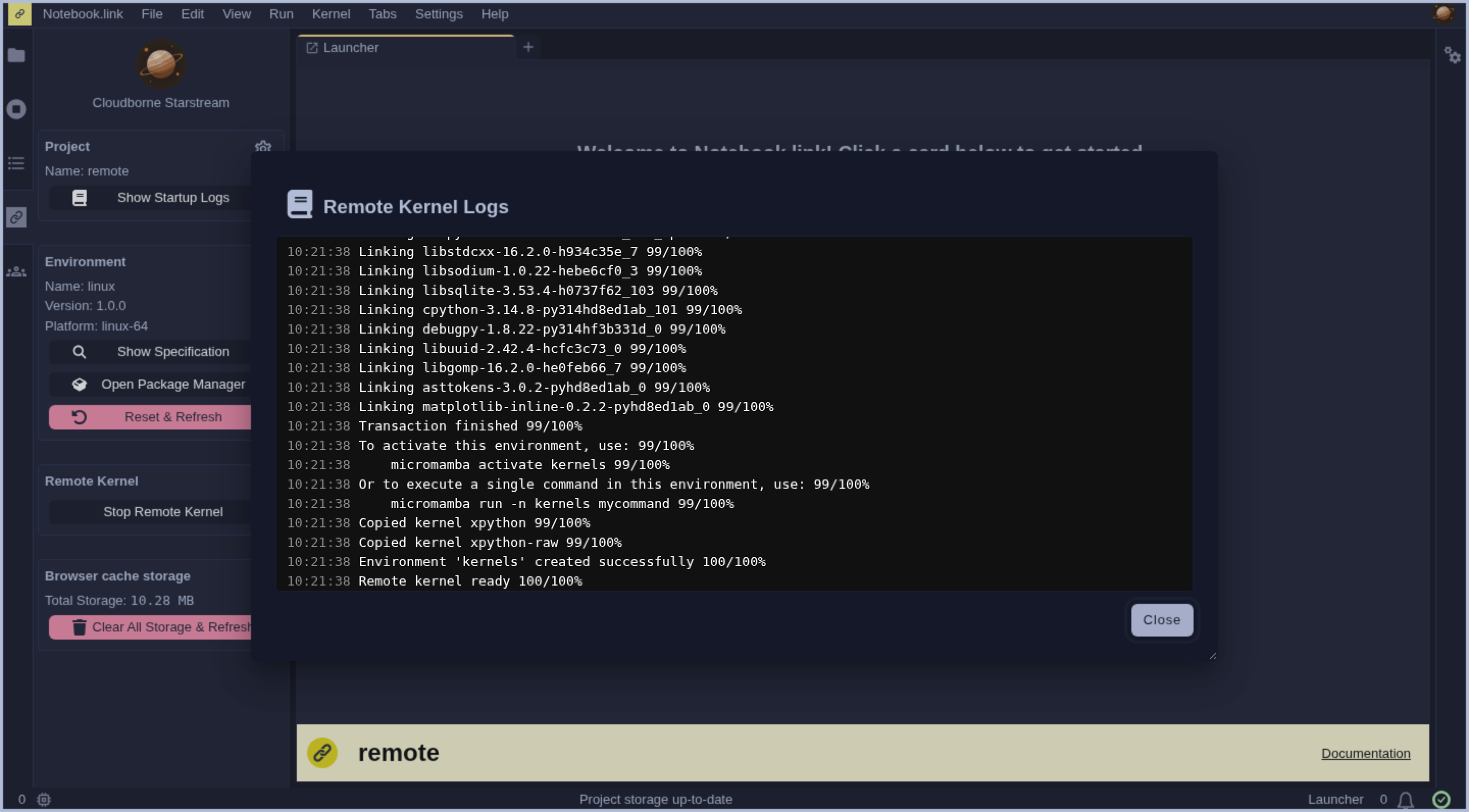
- The remote kernel starts when you open the project. A progress indicator shows each step: first the server starts, then the environment is created.
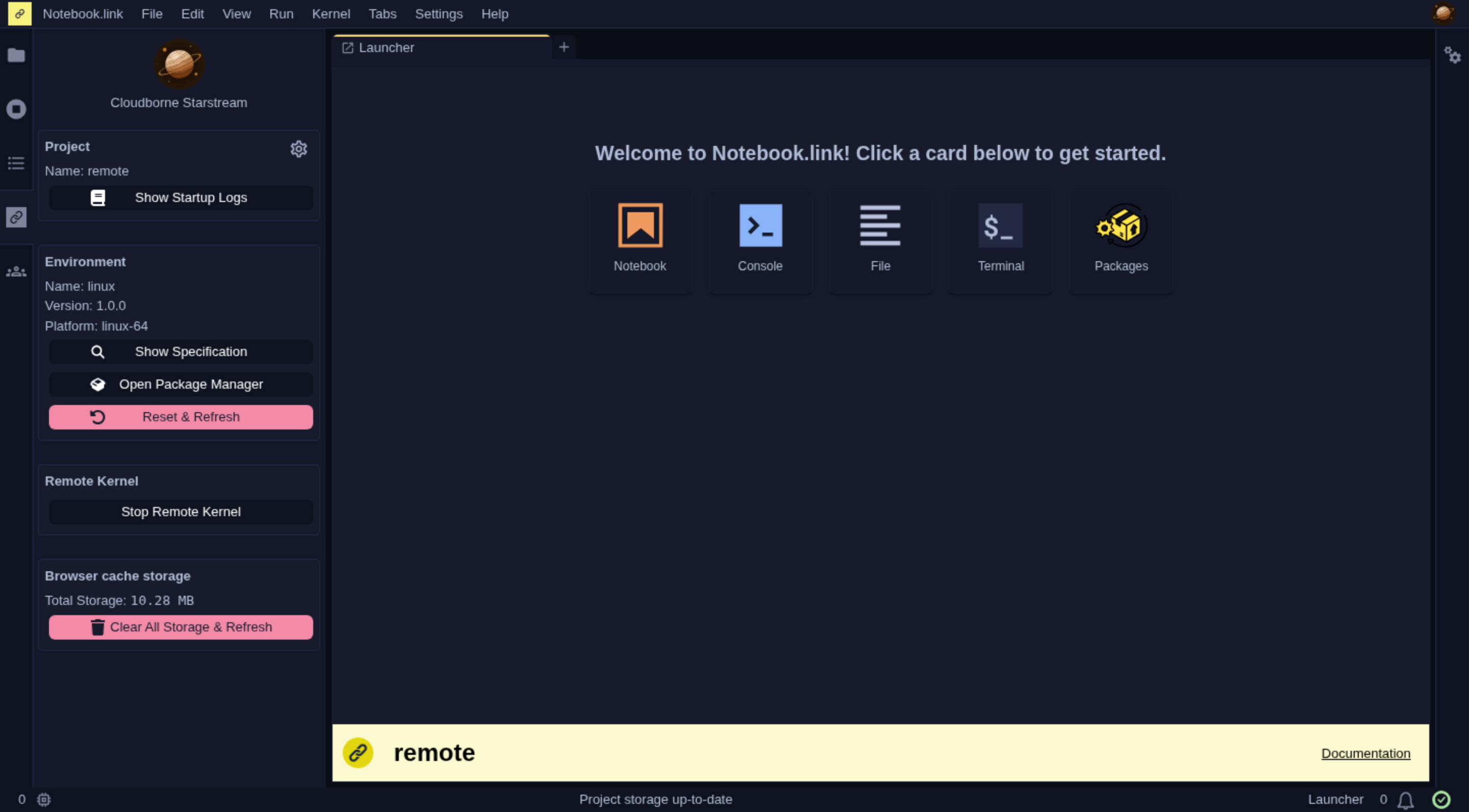
- To follow the startup, click Show Startup Logs in the project panel.
- The first startup of an environment may take some time, as its packages are downloaded.
- To stop or restart the remote kernel, use Stop Remote Kernel and Start Remote Kernel in the project panel. Each start recreates the environment from its definition.
Files
The kernel works in your project storage. Files created by your code are saved in the project and persist when the remote kernel stops. Files already in the project are available to your code, the terminal and your notebooks alike.
Terminal
In a project with a remote kernel, the terminal runs on the server, with your project environment activated. You can use standard Linux commands.
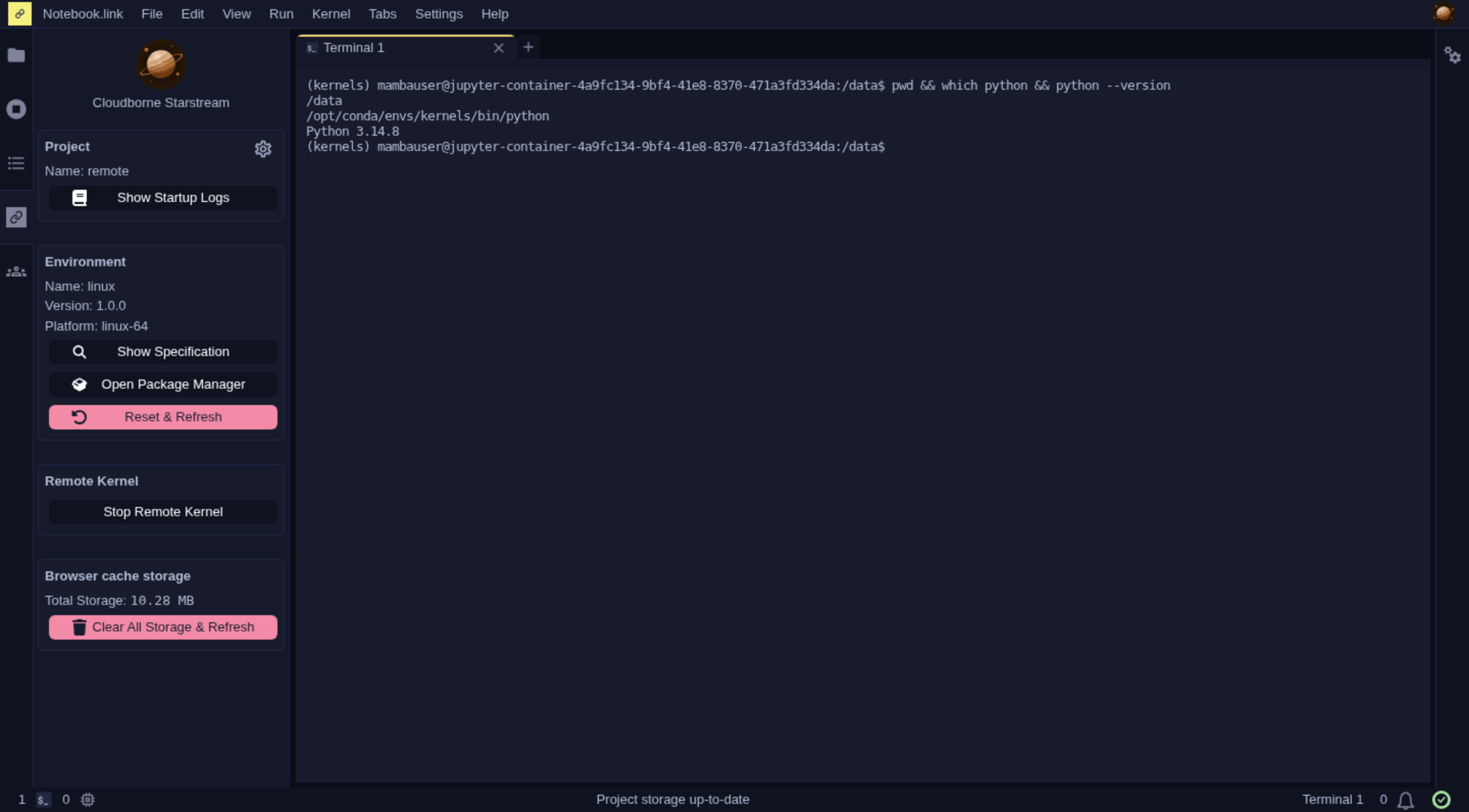
The terminal becomes available once the remote kernel is ready. During a brief network interruption, its session keeps running and the terminal reconnects automatically.
Current limitations
- Packages installed manually from the terminal or a notebook are lost when the remote kernel stops. Add them to your project environment to have them at every start.
- The remote kernel stops automatically about 20 minutes after the last tab of the project is closed.