Project panel
Access the project panel by clicking the cloud icon button, from the left sidebar.
The project panel content varies depending on whether you are working with :
- A link generated from a Git repository
- A custom project
Panel views
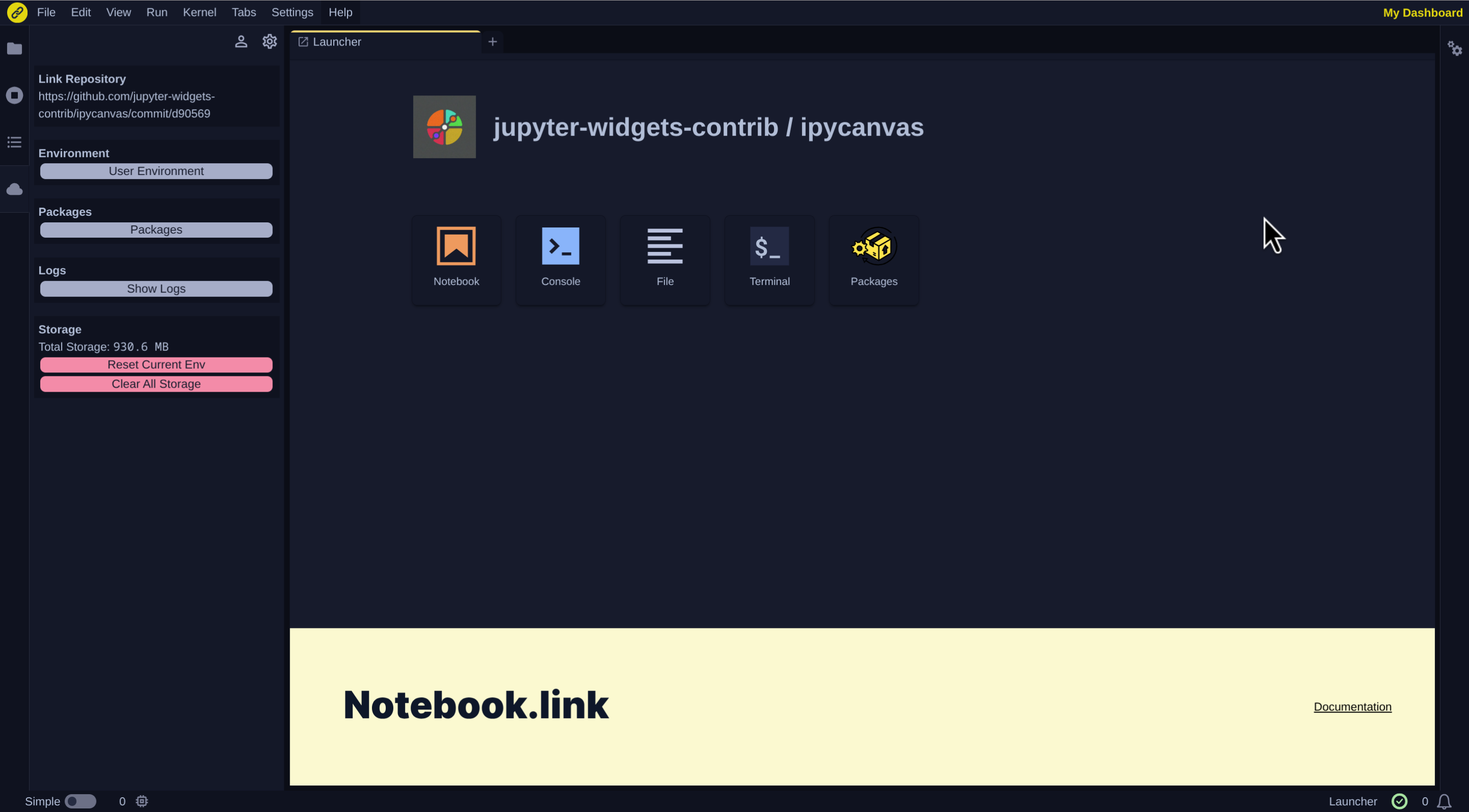
Git repository link
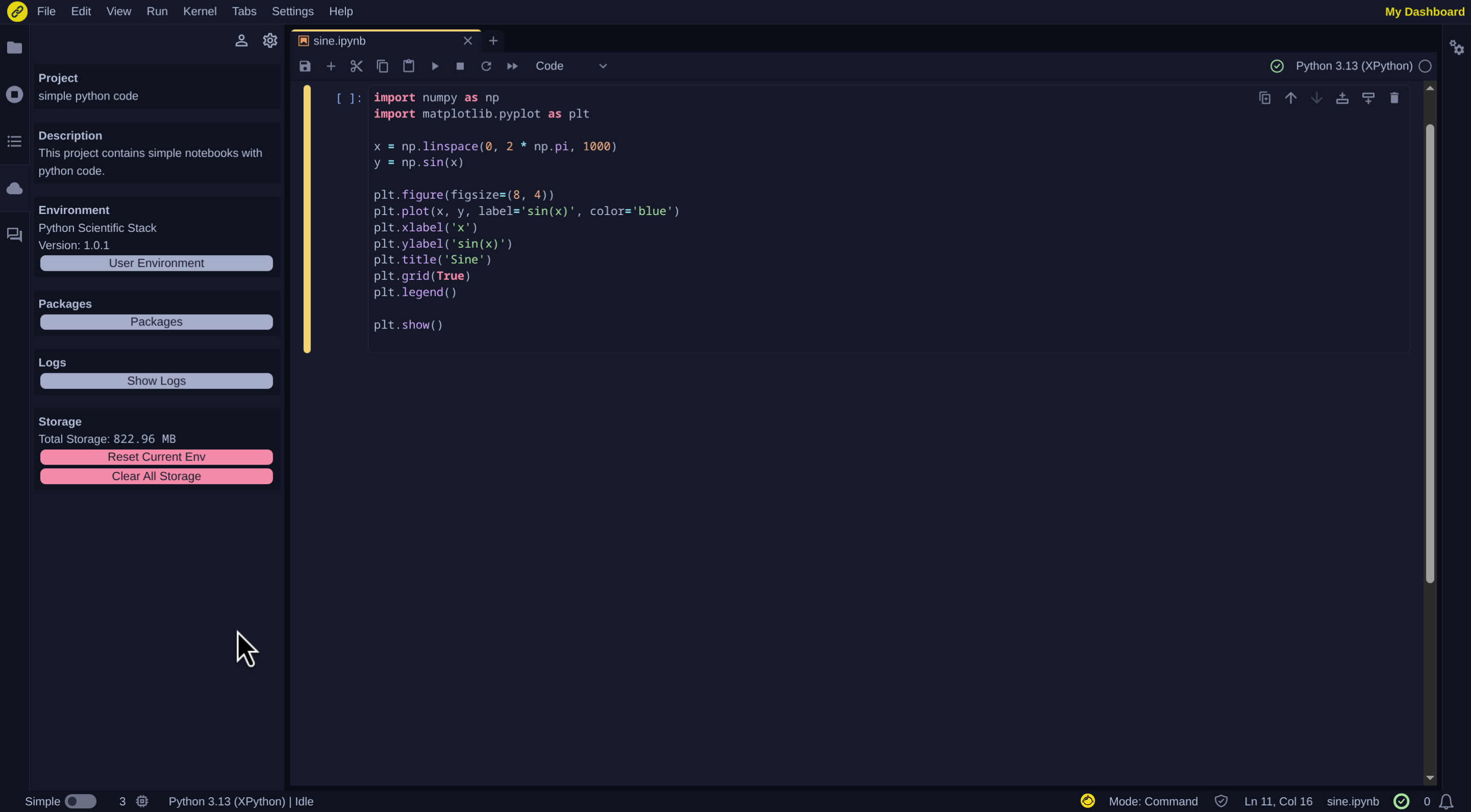
Custom project
Panel sections
The Project Panel displays comprehensive information about your current project, organized into the following sections
-
Link Repository(Git repository links only) Shows the linked repository information -
Project and Description(Custom projects only)
-
Displays:
- Project name
- Optional description
-
Available for:
- Projects opened from the Projects page
- Projects opened from a project snapshot link
-
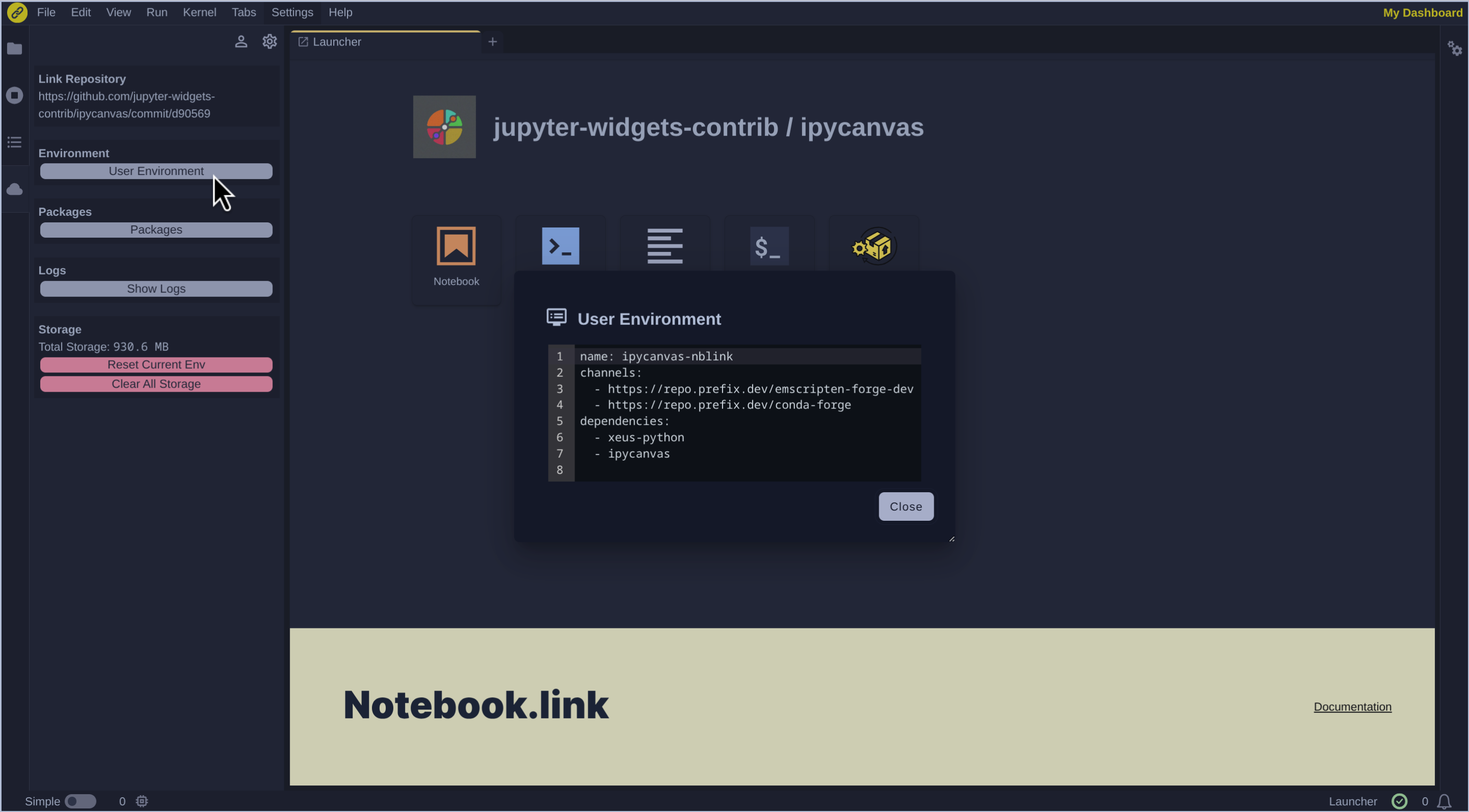
Environment: by clicking on the
User Environmentbutton, you can open a dialog containing information (name, channels and dependencies) about your environment as displayed in the following screenshot.
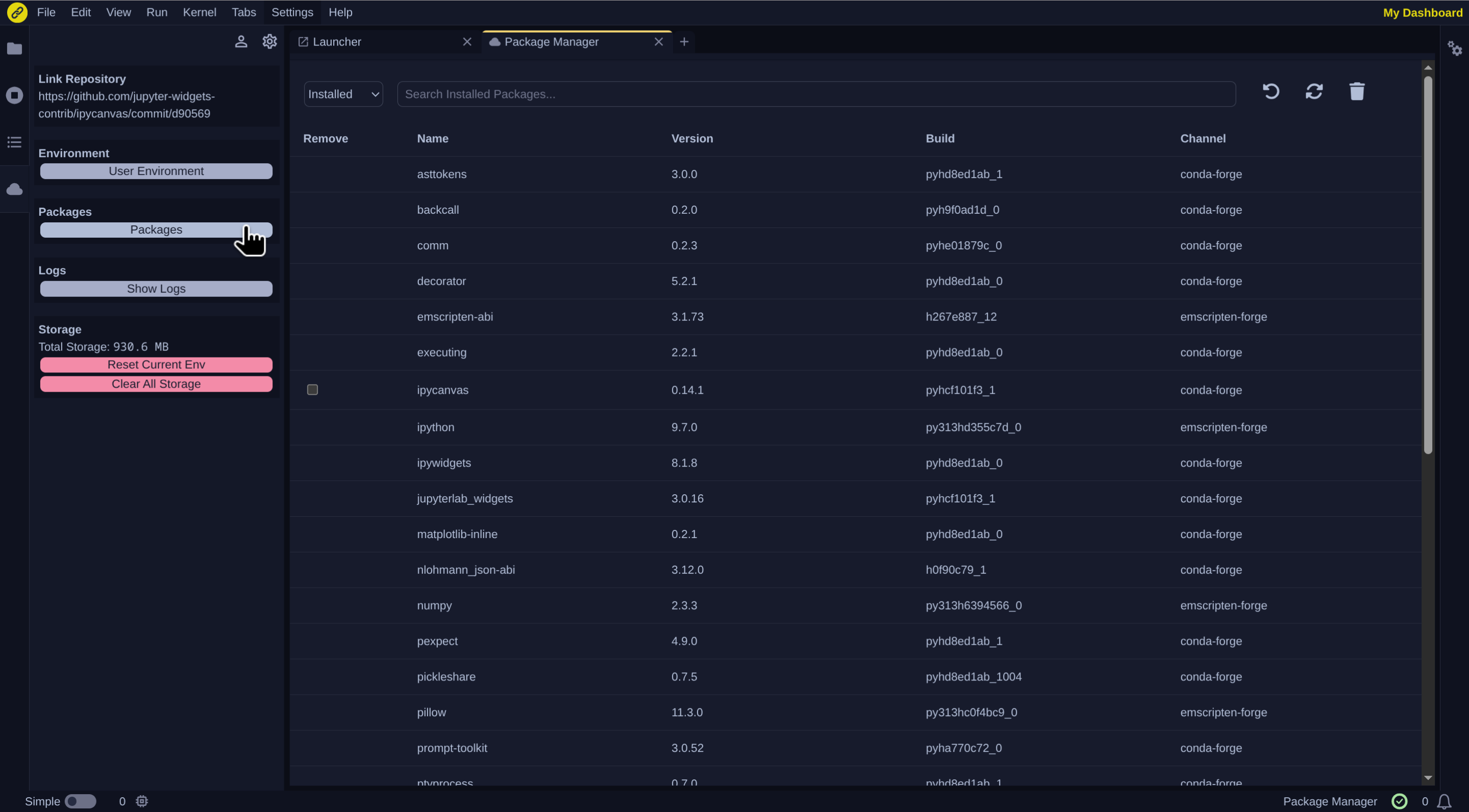
- Packages: You can manage your environment’s packages through the Package Manager panel. You can access it by clicking on
Packages.
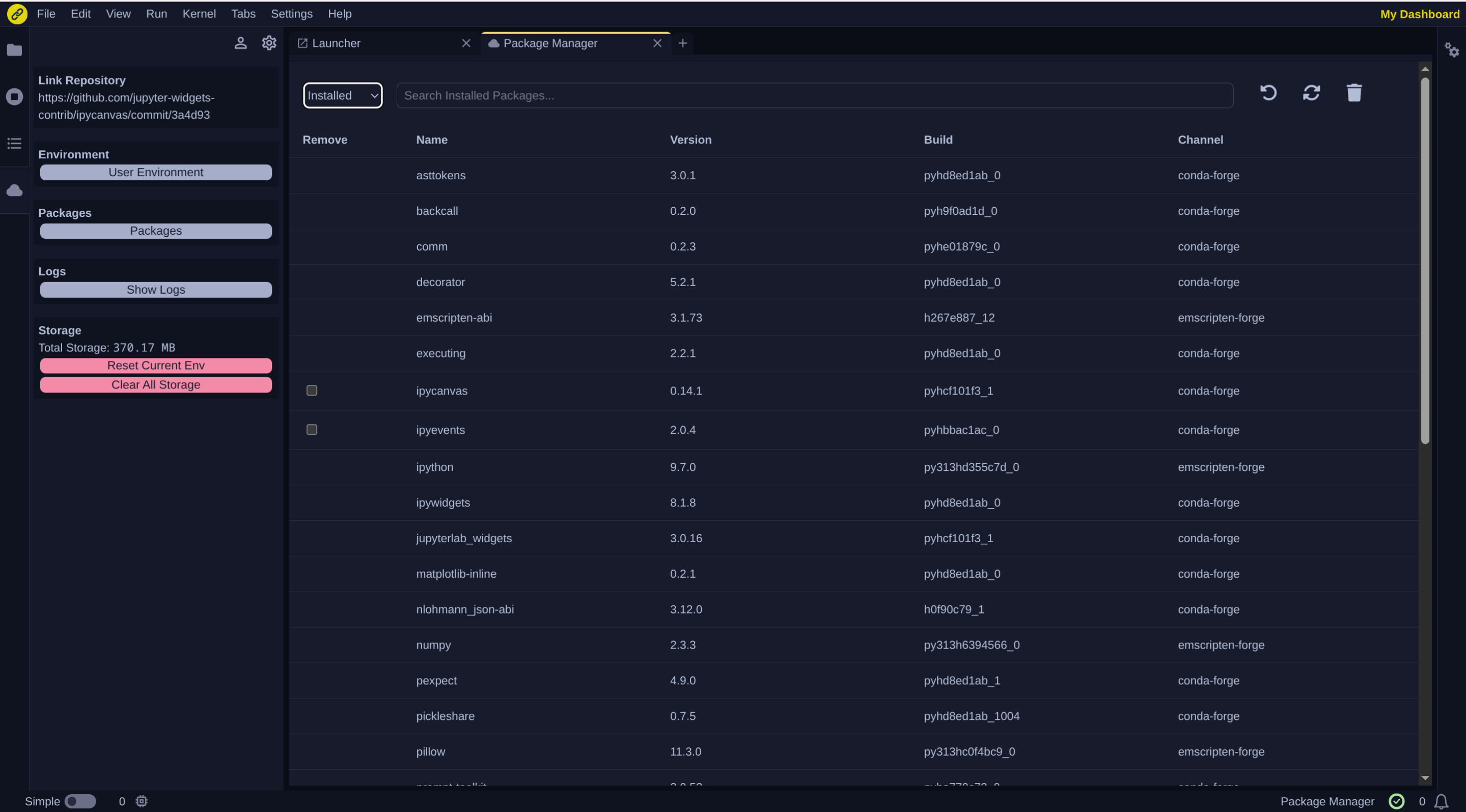
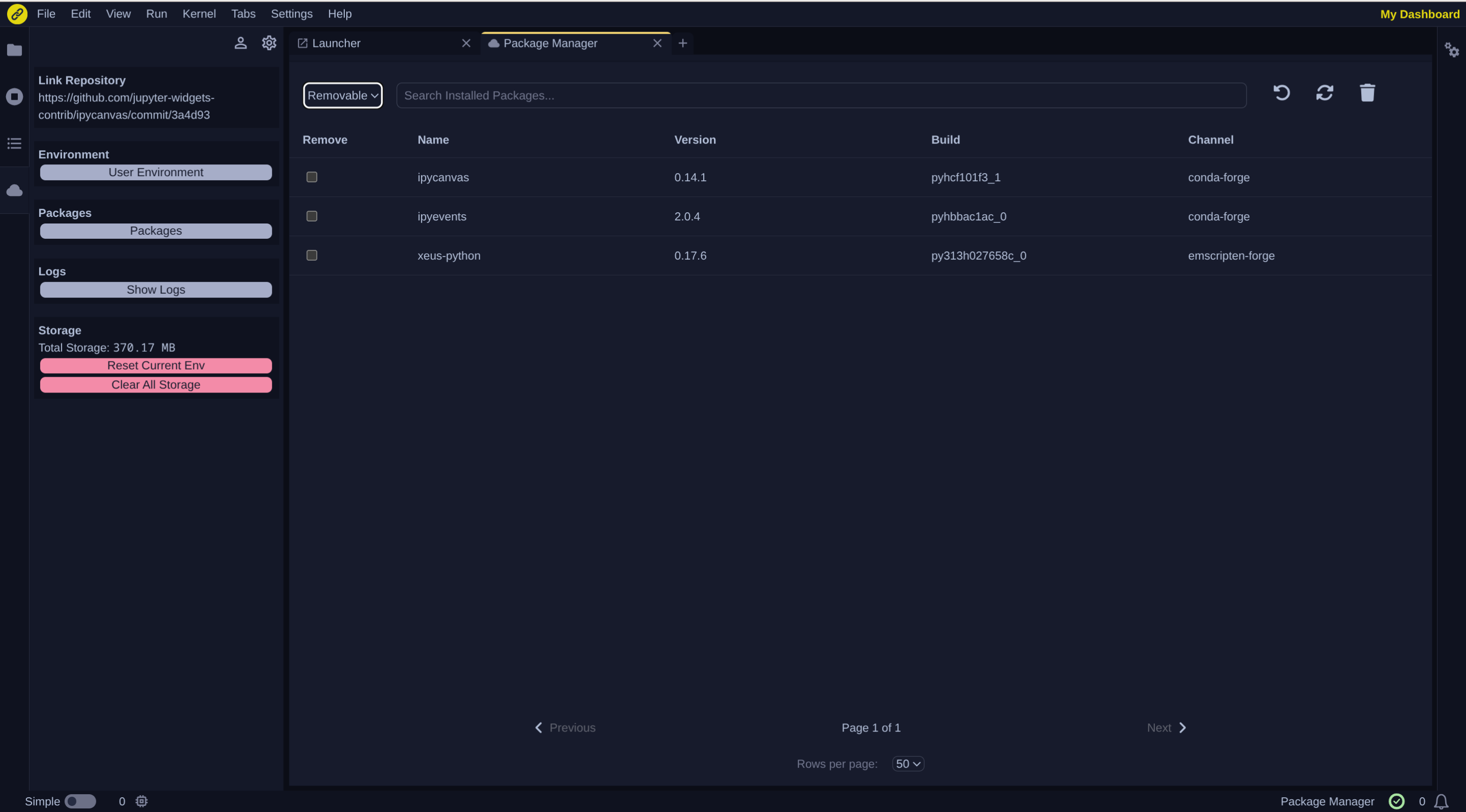
The panel displays a table listing all installed packages, including:
- Name
- Version
- Build number
- Channel
Two display options are available:
- all installed packages
- removable packages only
In the view displaying all packages installed, checkboxes are available in the first column to select removable packages, which you can delete by clicking on the trash button.
-
Logs: Clicking on the
Show Logsbutton opens a dialog showing as shown the following screenshot.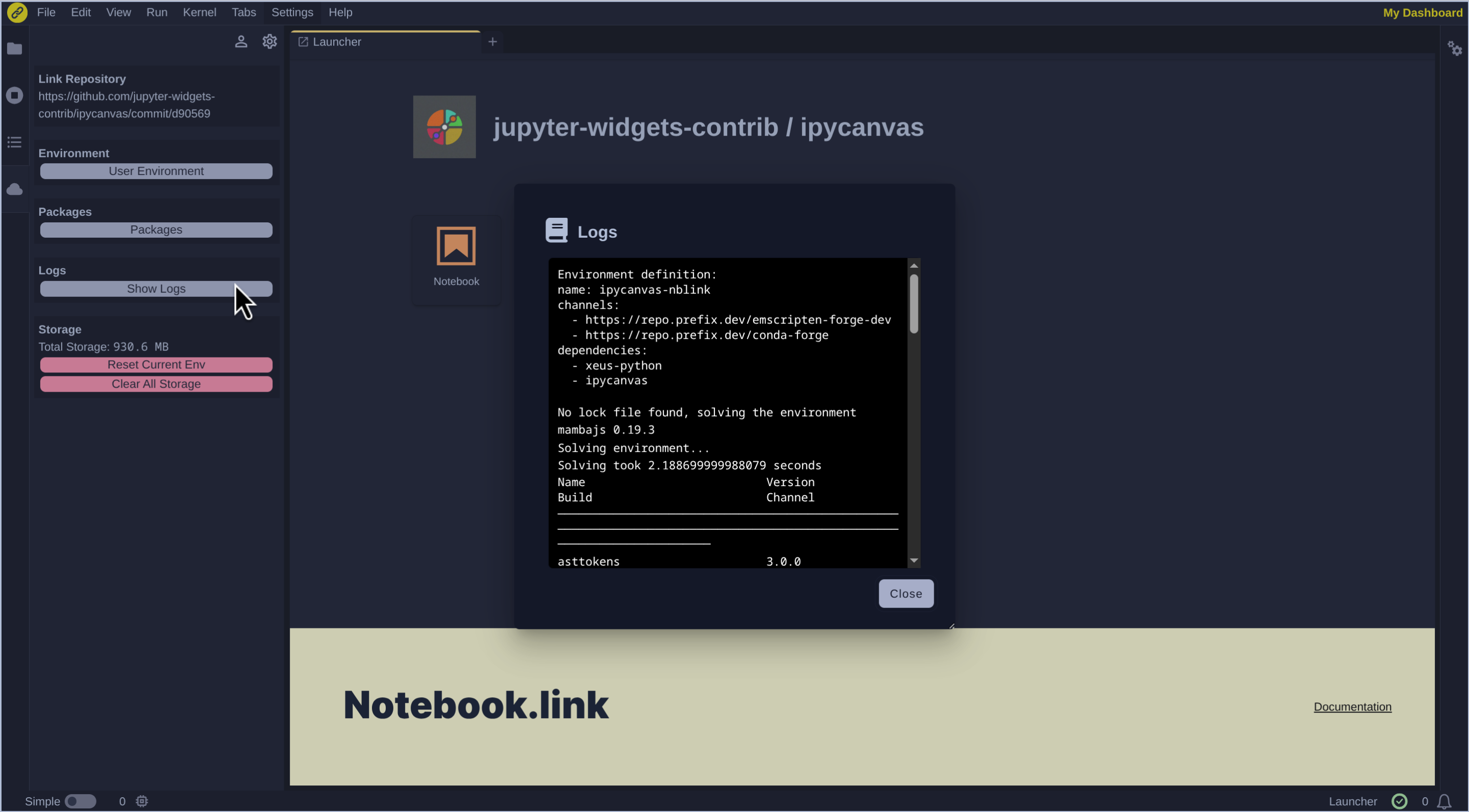
-
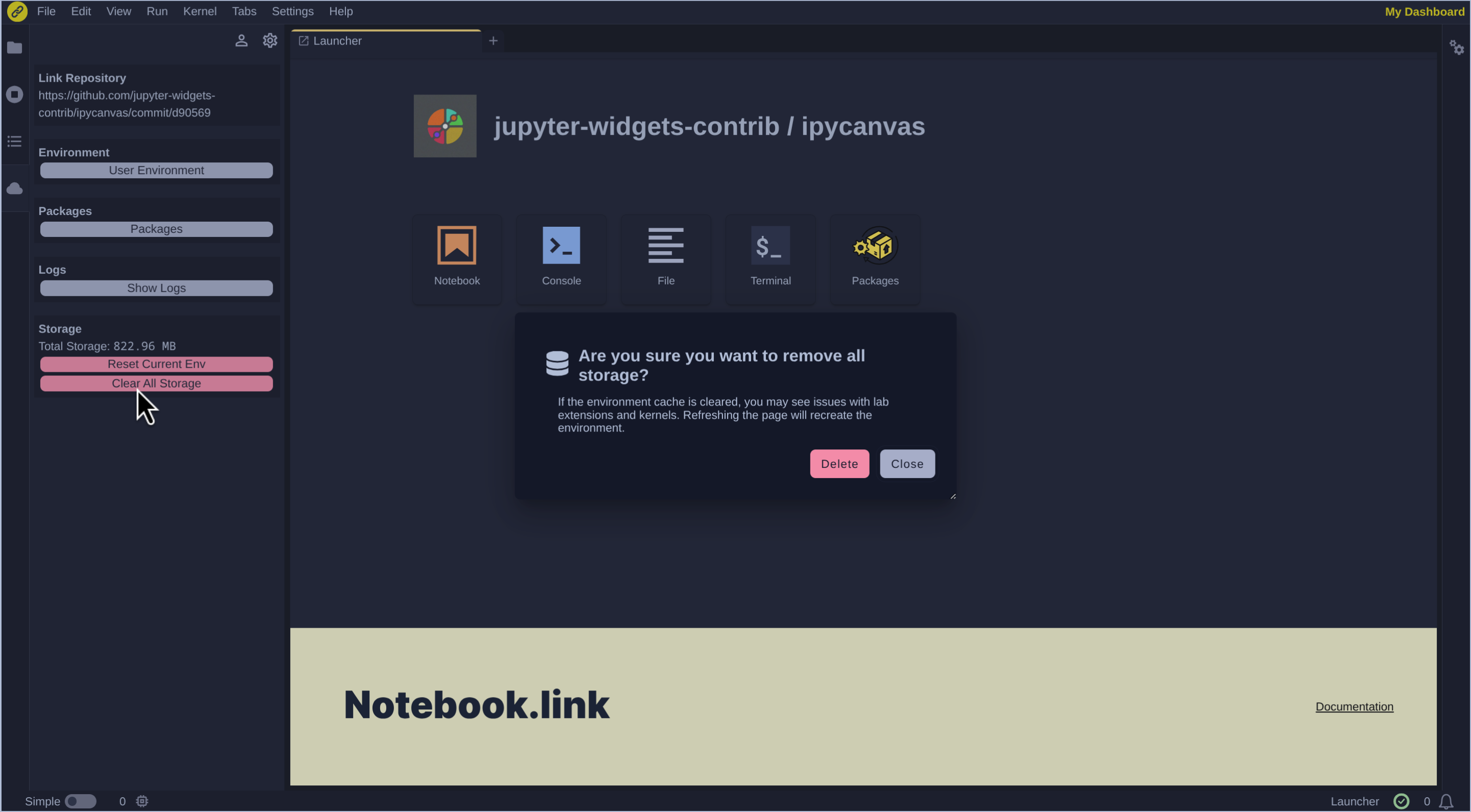
Storage: Clicking on the
Reset Current Envbutton opens a dialog to remove the environment cache and recreate the environment.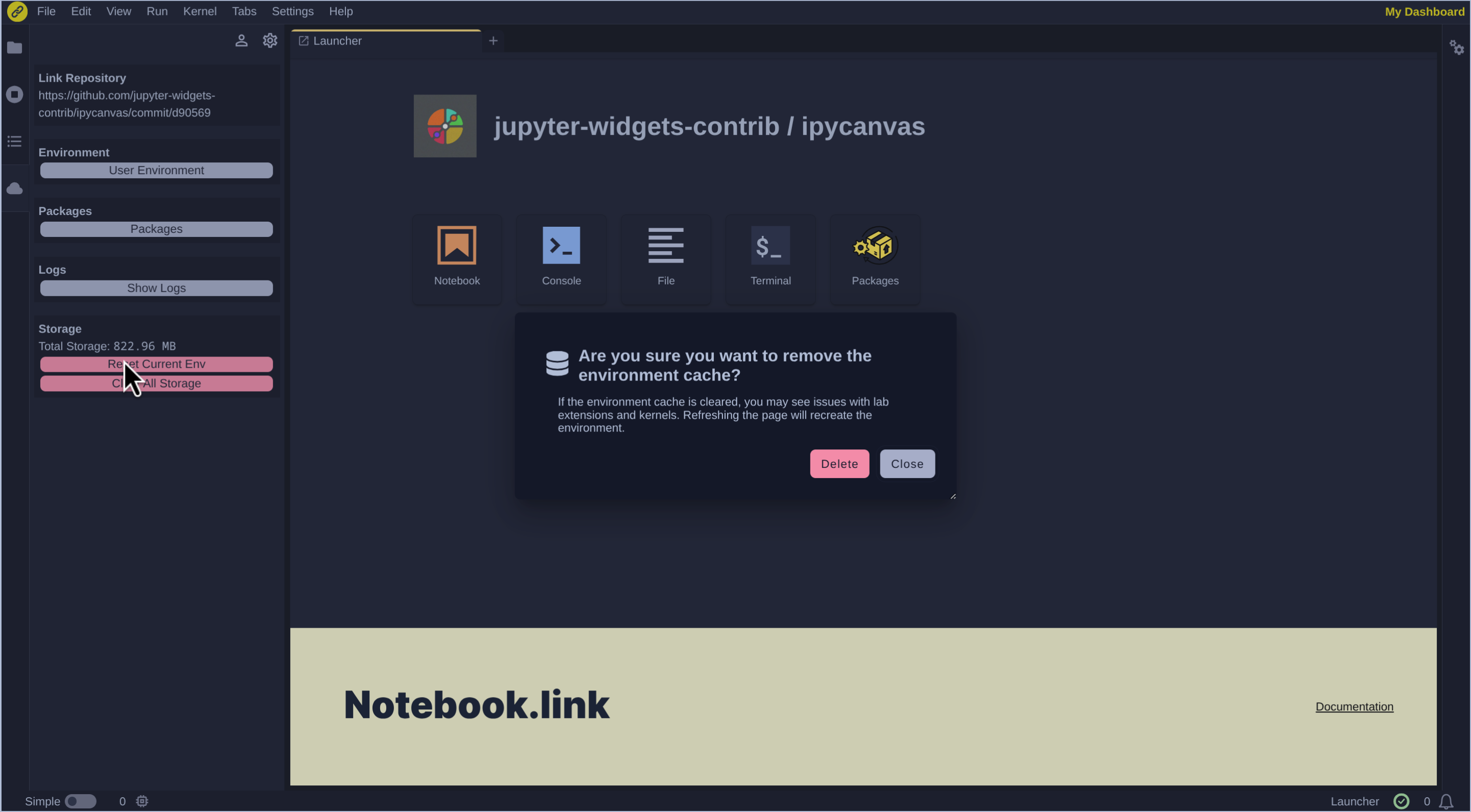 Clicking on the
 Clear All Storagebutton opens a dialog to clear all the storage data and also recreate the environment.