CORS Proxy
The CORS problem
In Notebook.link, your code runs in the web browser, not on a server. Browsers protect users with a rule called Cross-Origin Resource Sharing (CORS): a web page can only read data from another site if that site explicitly allows it.
Many sites allow it (CDNs, PyPI, most public APIs), and requests to them work as usual. Many others do not, so code like this fails in the browser even though it works on your computer:
import requests

response = requests.get("https://proof.ovh.net/files/1Mb.dat")
The CORS Proxy add-on solves this by fetching the data through the Notebook.link server for the sites you allow.
How it works
- Your notebook first tries to reach the site directly. If the site allows it, nothing else happens.
- If the browser blocks the request because of CORS, Notebook.link asks whether you allow this site.
- Once allowed, requests to that site go through the Notebook.link proxy and the notebook receives the response as if it came directly from the site.
Good to know:
- Only HTTPS sites are supported.
- Proxied requests are sent one at a time.
- Usage is limited per user: a monthly bandwidth and a number of requests per minute. Your usage is shown on the add-on page.
The CORS Proxy add-on page
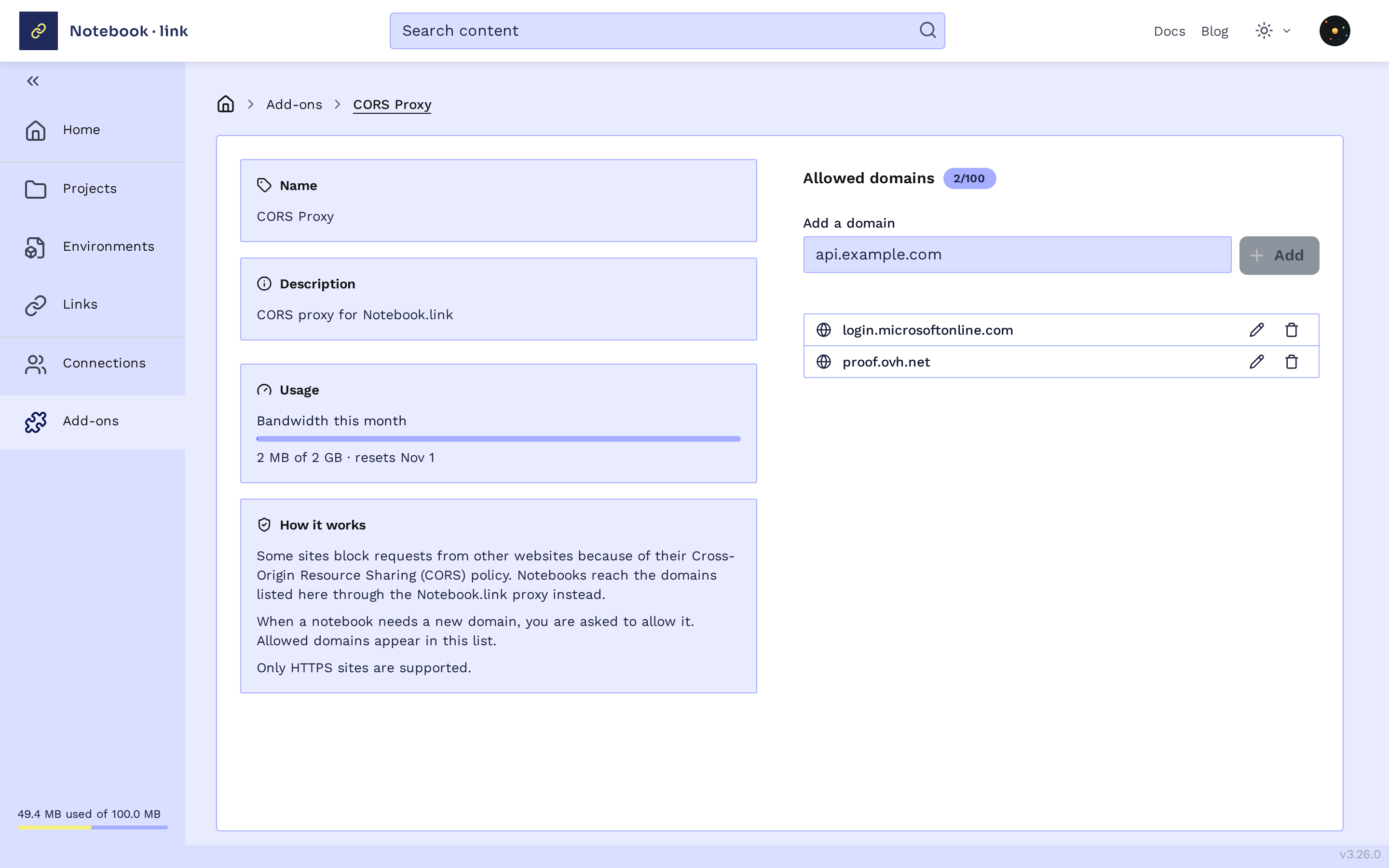
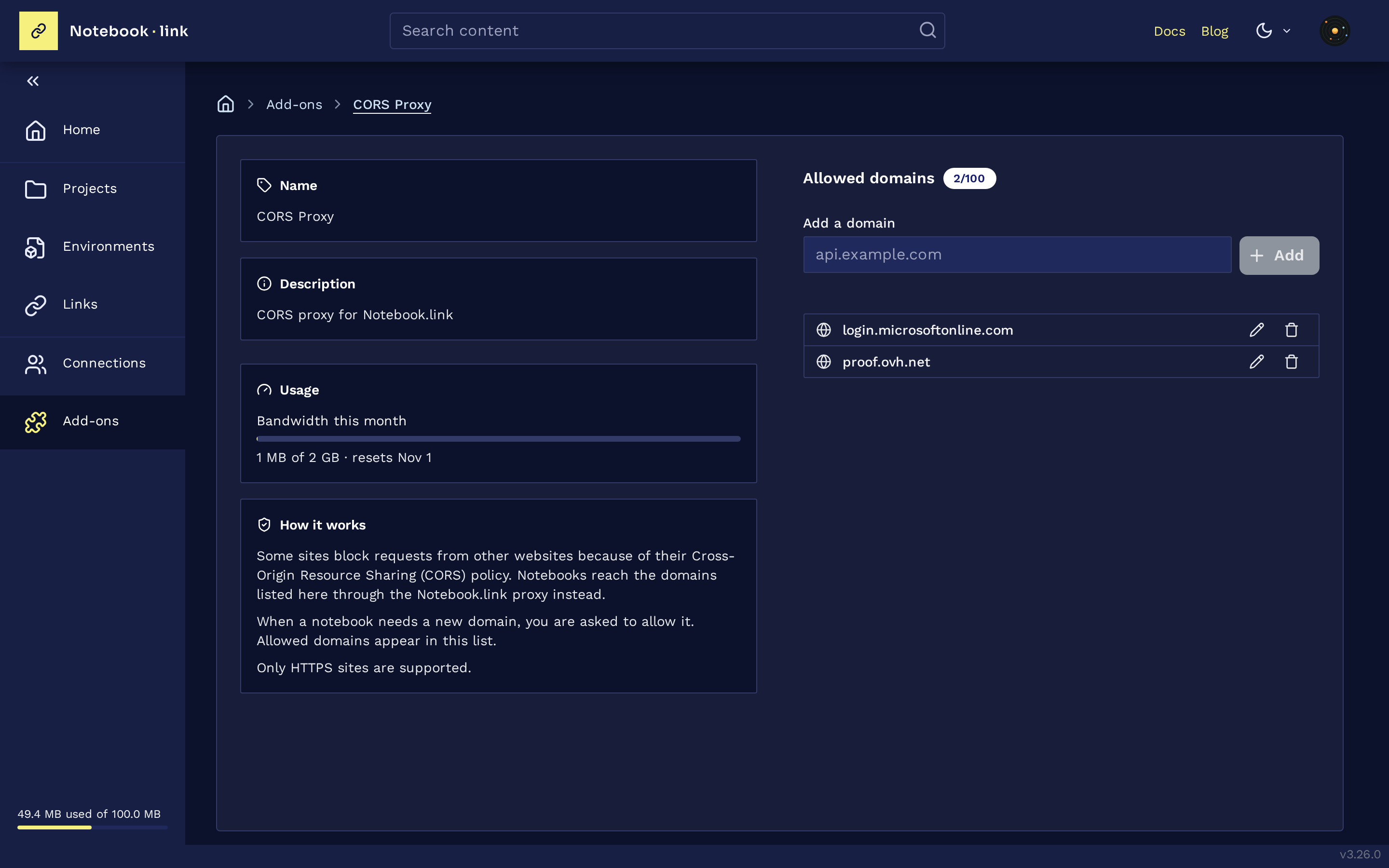
Open the add-ons page and click the CORS Proxy card. Unlike other add-ons, it needs no configuration before use.
The page shows:
- Usage: the bandwidth used this month and when it resets.
- Allowed domains: the sites your notebooks may reach through the proxy (up to 100). Sites are added here when you allow them from a notebook. You can also add a domain yourself, edit it, or remove it with the trash icon.
Activating it in a project
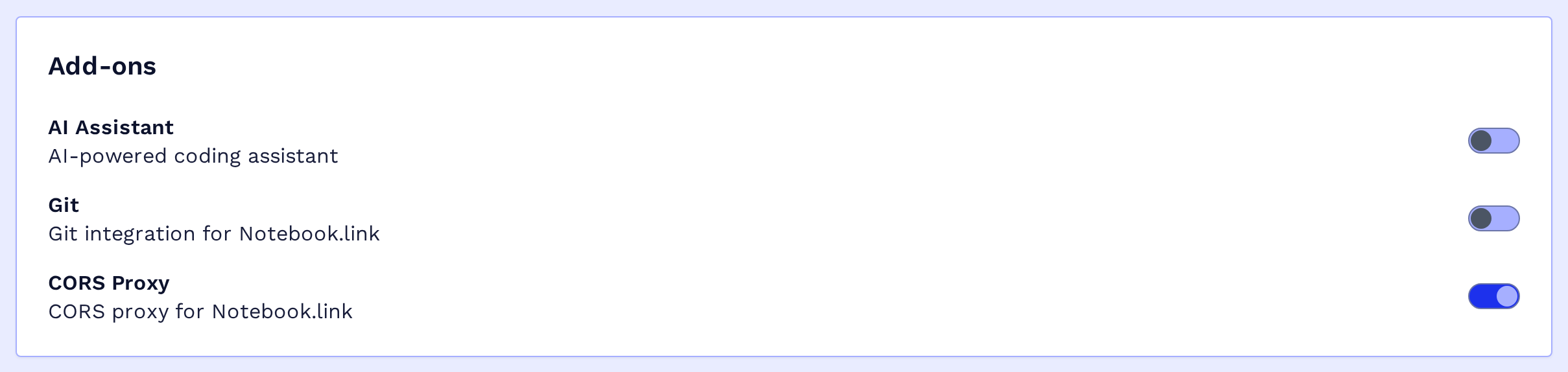
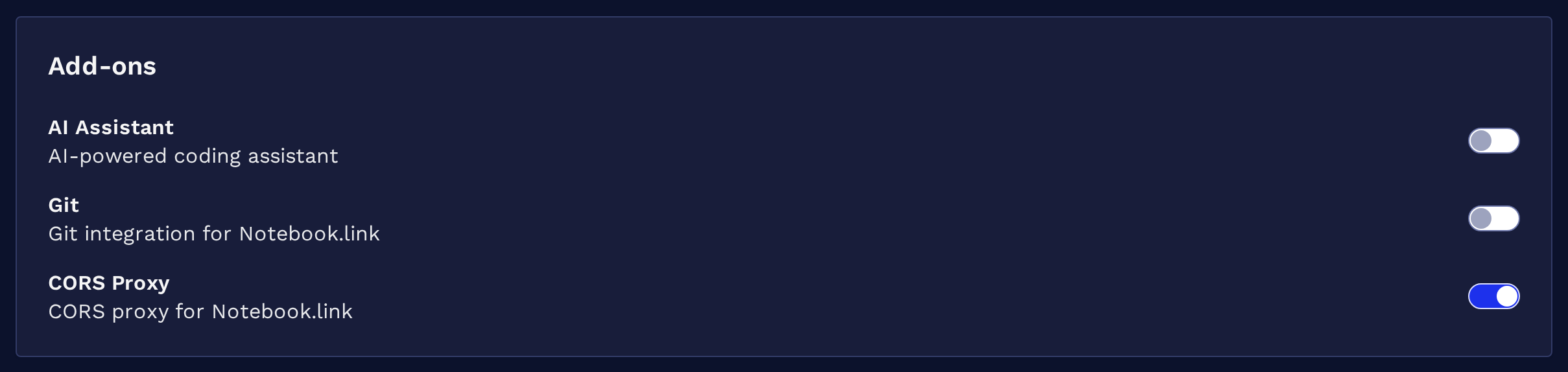
When creating or editing a project:
- Locate CORS Proxy in the
Add-onssection - Toggle the activation switch
When creating a project, save it to apply the change. When editing an existing project, the change is saved automatically.
Using it in JupyterLite
Launch the project and run code that requests a site blocked by CORS. The first time a notebook needs a new site, Notebook.link asks for your permission:
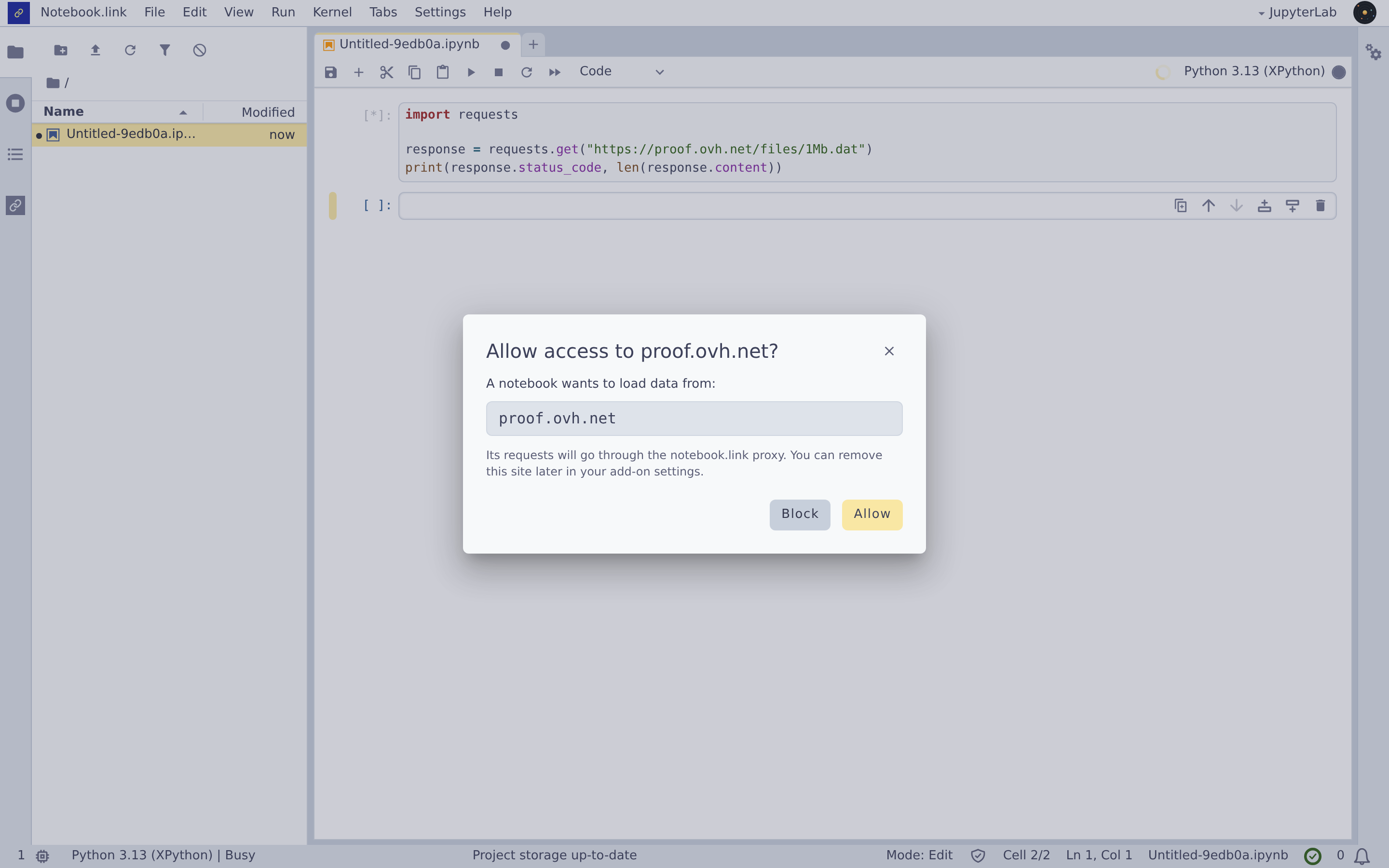
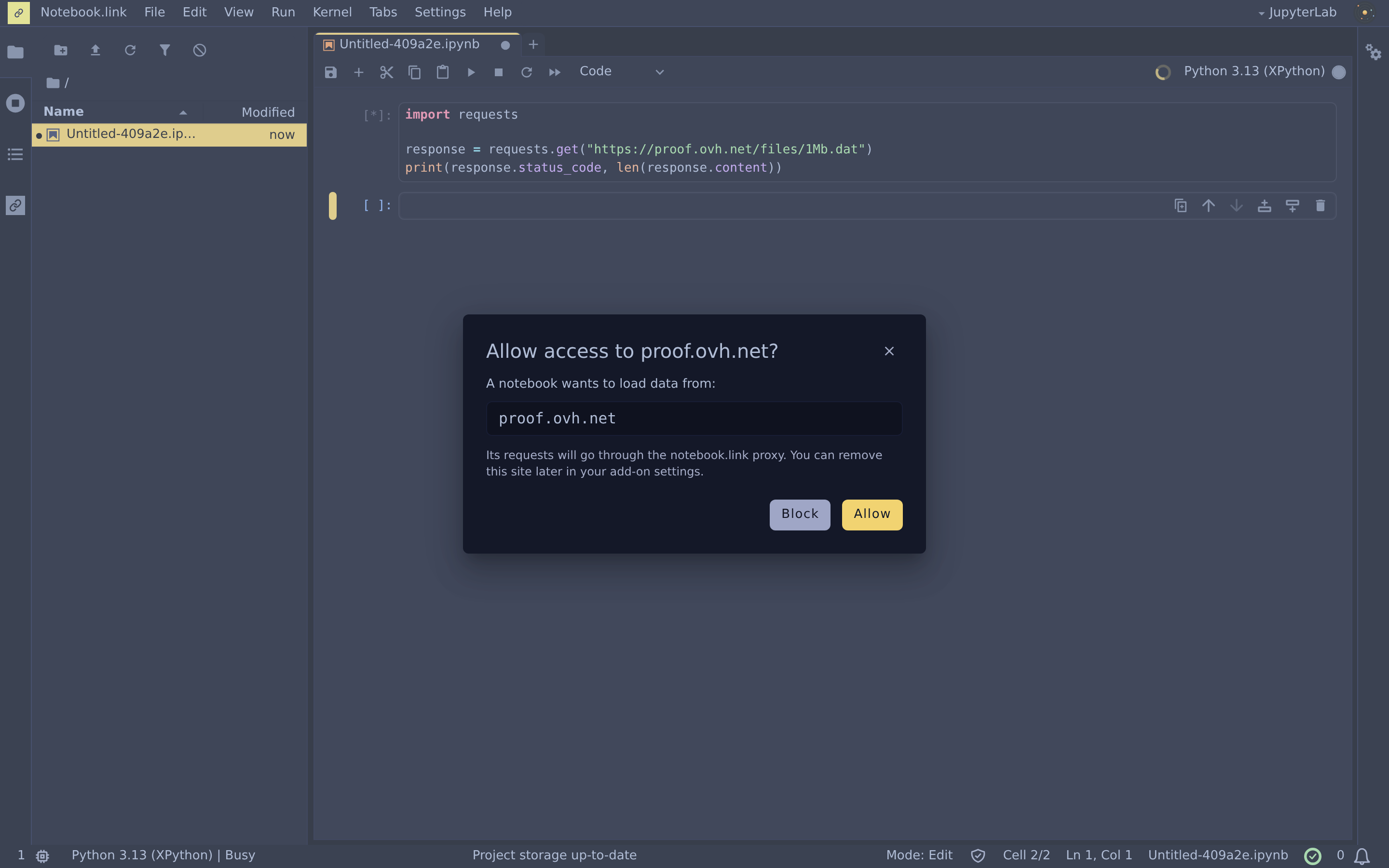
- Allow: the site is added to your allowed domains and the request goes through the proxy. You will not be asked again for this site, in any project.
- Block: the request fails, and requests to this site keep failing until you reload the page.
- Close (×): nothing is decided. The request fails and you will be asked again on the next request to this site.
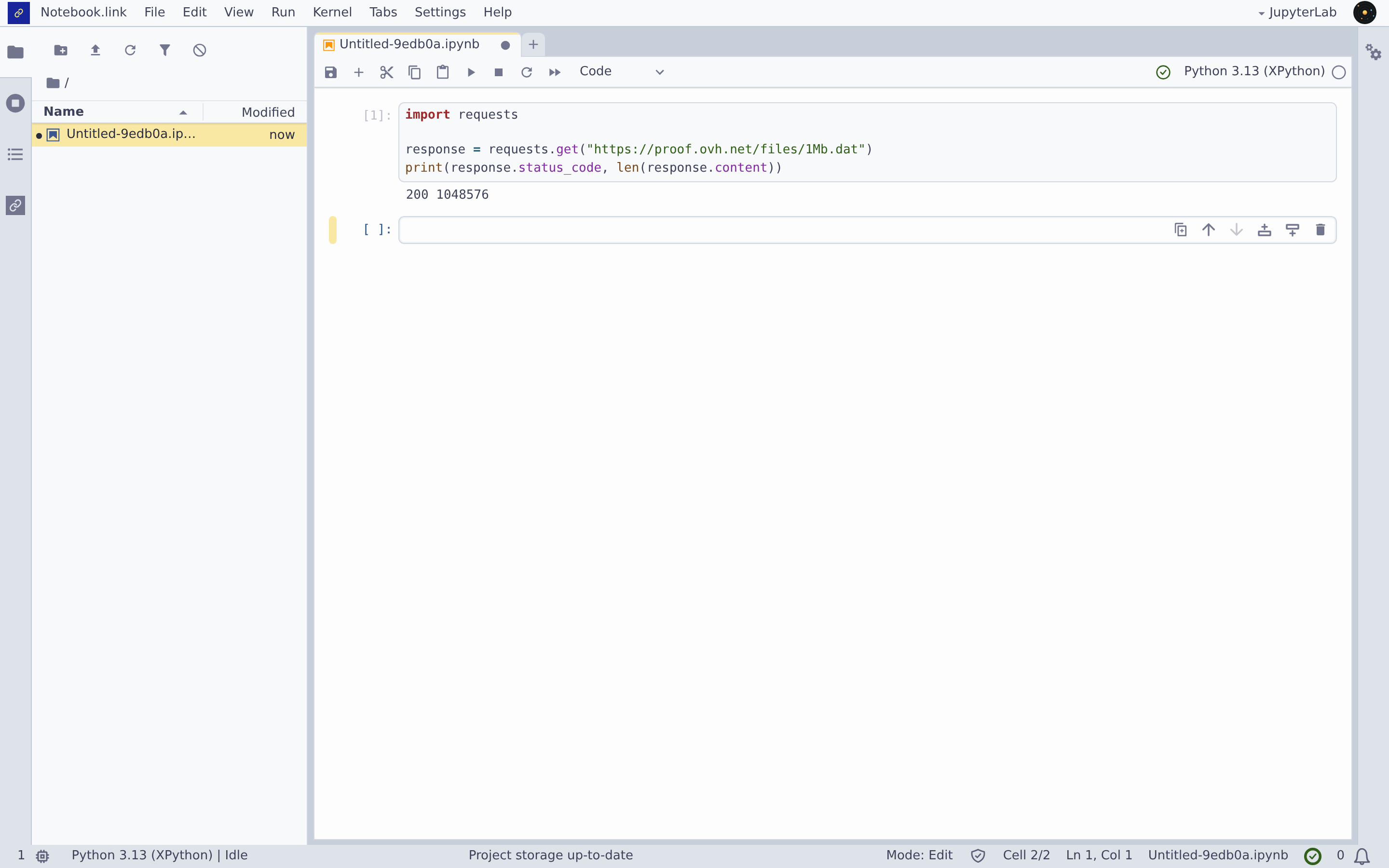
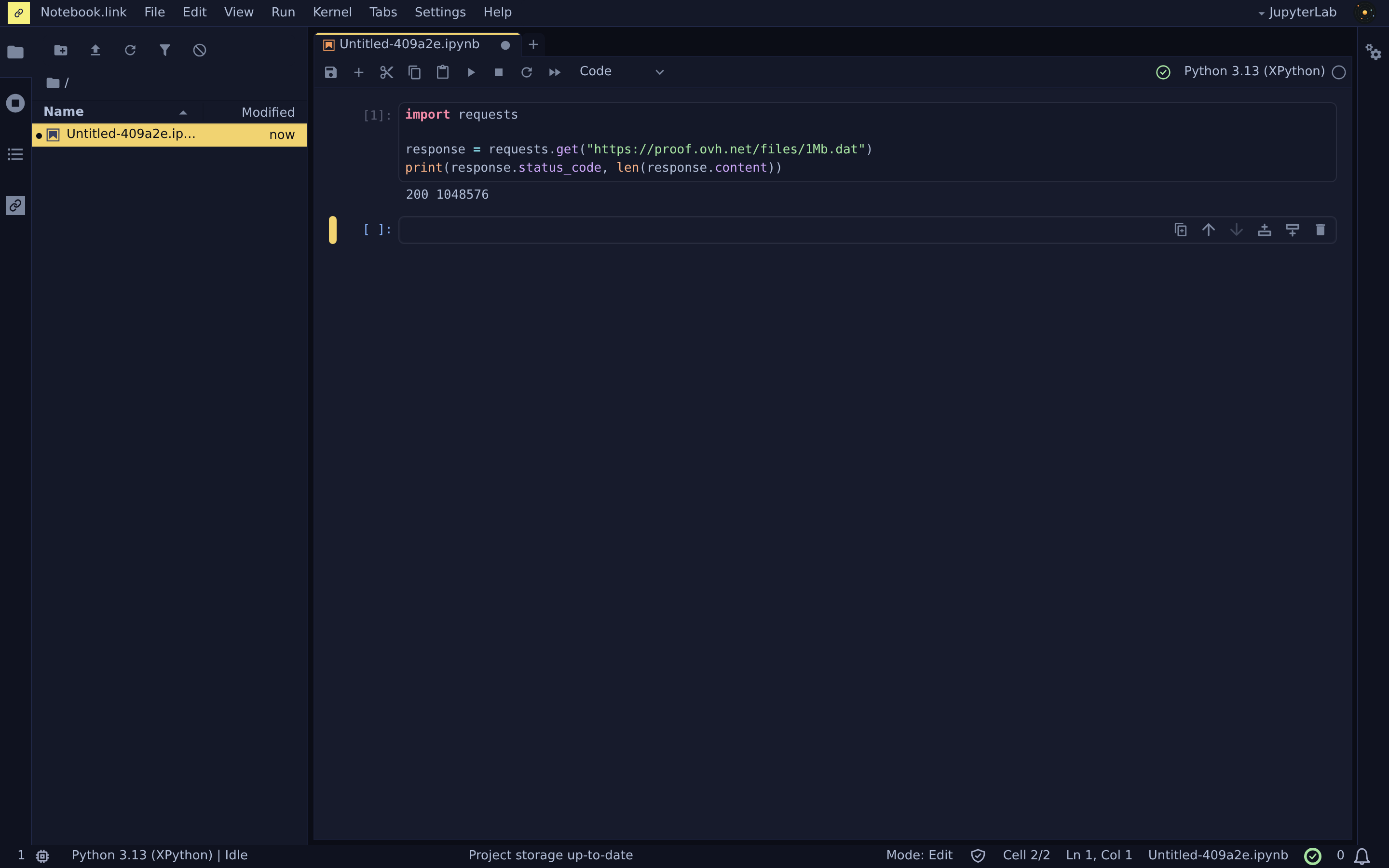
After allowing the site, the notebook receives the data:
Limits and errors
- A usage limit is reached: the request returns HTTP status
429. The per-minute limit clears within a minute; the monthly bandwidth resets on the first day of the next month. - The site is blocked or not allowed: the request fails with a connection error.
- A site removed from the allowed domains: you will be asked again the next time a notebook needs it.