Notebook.link News — October 2026

We have been working on making the Notebook.link JupyterLite experience faster, more powerful, and easier to use. The latest build brings several improvements to the Python environment, filesystem performance and package installation.
Here’s what’s new!
Python packages from pyemscripten wheels
The Python Enhancement Proposal 783 introduced a new pyemscripten platform tag for Python packages built for Emscripten.
Notebook.link can now make use of Python packages distributed on PyPI as wheels with the pyemscripten platform tag.
This means that packages built specifically for WebAssembly with the pyemscripten wheel tag can be installed directly from a notebook using pip, just like regular Python packages.
For example:
!pip install contourpy
Once installed, contourpy can be imported and used directly in the notebook.
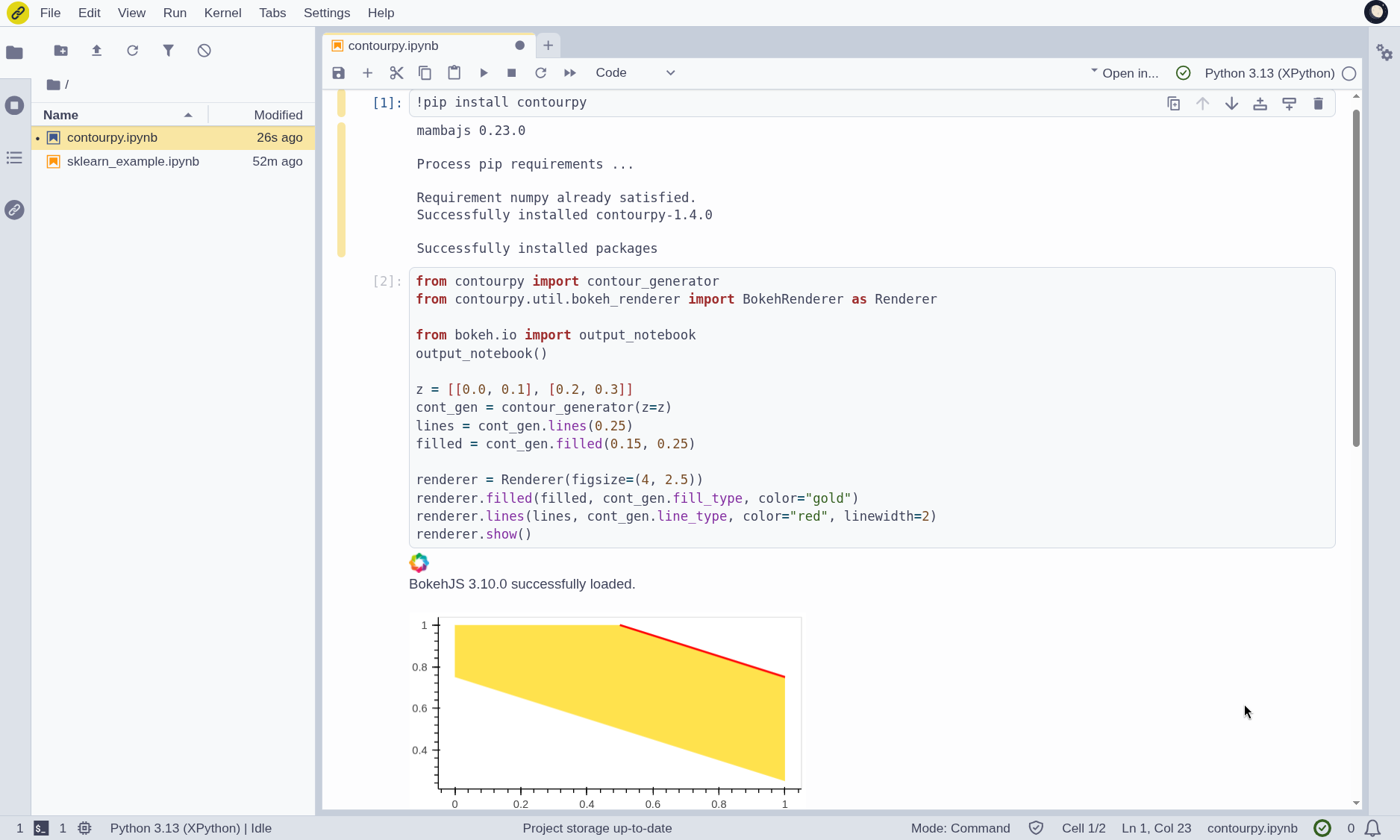
This should soon extend to a range of Python packages, browse the page Are we PEP783 yet? to see where the community is at on supporting that new PEP.
A much faster filesystem
We have also significantly improved the performance of the filesystem used by Notebook.link.
Kernels and terminals can now access and modify files much faster. Operations that involve many filesystem accesses such as starting kernels, working with packages, or manipulating collections of files, benefit from these improvements.
The result is a noticeably more responsive notebook and terminal experience, particularly for workloads that interact heavily with the filesystem.
Benchmarks
Here are a few benchmarks to give a rough idea of the performance evolution of these operations. The numbers below are provided for reference rather than as absolute performance figures: results can vary significantly depending on the machine, browser, network conditions, and other factors.
This table shows performance before the recent release (similar performance to JupyterLite + Pyodide) and now in Notebook.link
| Benchmark | Mean Before (ms) | Mean Now (ms) | Speedup |
|---|---|---|---|
open_close_16KB_x10 | 29.08 | 0.36 | ~80x |
open_close_2MB_x10 | 473.62 | 0.26 | ~1800x |
open_close_12MB_x3 | 704.90 | 0.30 | ~2400x |
open_read_1MB_chunk1048576B | 233.12 | 0.20 | ~1200x |
open_read_1MB_chunk65536B | 237.68 | 0.08 | ~3000x |
open_read_1MB_chunk4096B | 237.04 | 0.32 | ~800x |
open_read_1MB_chunk512B | 237.72 | 0.70 | ~400x |
reads_4k_single_open_1MB | 235.46 | 0.22 | ~1100x |
seek_read_64B_x50 | 237.24 | 0.20 | ~1200x |
os_stat_x200 | 277.28 | 1.12 | ~250x |
Query arguments available in the language kernel
Notebook.link now supports passing query arguments directly to the Notebook.link URL.
For example, opening a page with: https://notebook.link/@martinRenou/query-arguments?foo=bar&bar=baz
makes those query arguments available to the Python kernel through the NBL_QUERY_PARAMETERS environment variable. They can be parsed using Python's standard library:
import os
from urllib.parse import parse_qs

parse_qs(os.environ['NBL_QUERY_PARAMETERS']) #  {'foo': ['bar'], 'bar': ['baz'], 'theme': ['dark']}
This makes it possible for notebooks to adapt their behaviour based on parameters provided in the URL, without requiring additional configuration or communication between the notebook and the surrounding page.
Install packages when you need them
Notebook.link can now help when a Python package isn't installed.
For example, if you open a notebook and run:
import sklearn
without scikit-learn being available in the current environment, Notebook.link can detect the missing package and ask:
Accepting the prompt installs the package and makes it available to the notebook.
This isn't limited to scikit-learn: the mechanism works with Python packages available through conda-forge and emscripten-forge, allowing Notebook.link to discover and install packages from the supported package ecosystem as they are needed.
This makes it much easier to work with notebooks that depend on packages that aren't part of the initial environment. Instead of having to figure out the package name, find the right WebAssembly-compatible build, and install it manually, Notebook.link can guide you through the process.
Connect your AI provider in one click
Setting up the AI Assistant add-on no longer requires creating and copy-pasting an API key.
For supported providers, the add-on settings now show a Connect with... button. Clicking it opens the provider's authorization page, where you sign in and approve Notebook.link. An API key linked to your provider account is then created and saved to your Notebook.link account automatically.
This is currently available for:
- EUrouter 🇪🇺
- OpenRouter 🇺🇸
The connection uses the OAuth PKCE flow (Proof Key for Code Exchange), a standard way of authorizing an application without sharing your password with it. The API key is exchanged directly between the provider and Notebook.link, and it is stored as a secret in your account, like keys you add manually.
Once connected, the provider is available in the JupyterLite AI chat and code completion, with usage billed to your provider account. You can still paste an API key manually if you prefer.
What's next?
These improvements are part of our ongoing effort to make JupyterLite a practical environment for running scientific Python directly in the browser.
With faster storage, broader Python package support, easier package installation, and one-click AI provider connection, Notebook.link is getting closer to the experience of opening a local Jupyter environment, while keeping the convenience of running everything in the browser.